


Changing Email Password Through cPanel
If the email account owner has lost or forgotten the password, the password can be changed using this without knowing the old password
- Log into cPanel.
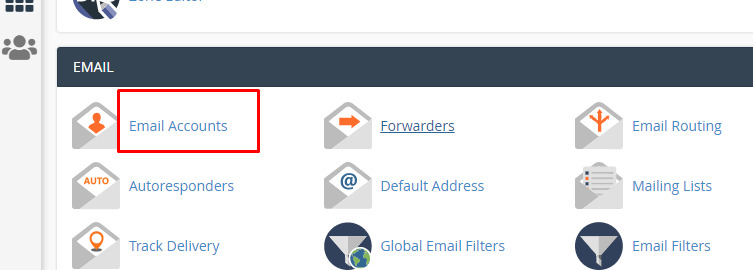
- In the Mail section, click the Email Accounts icon.
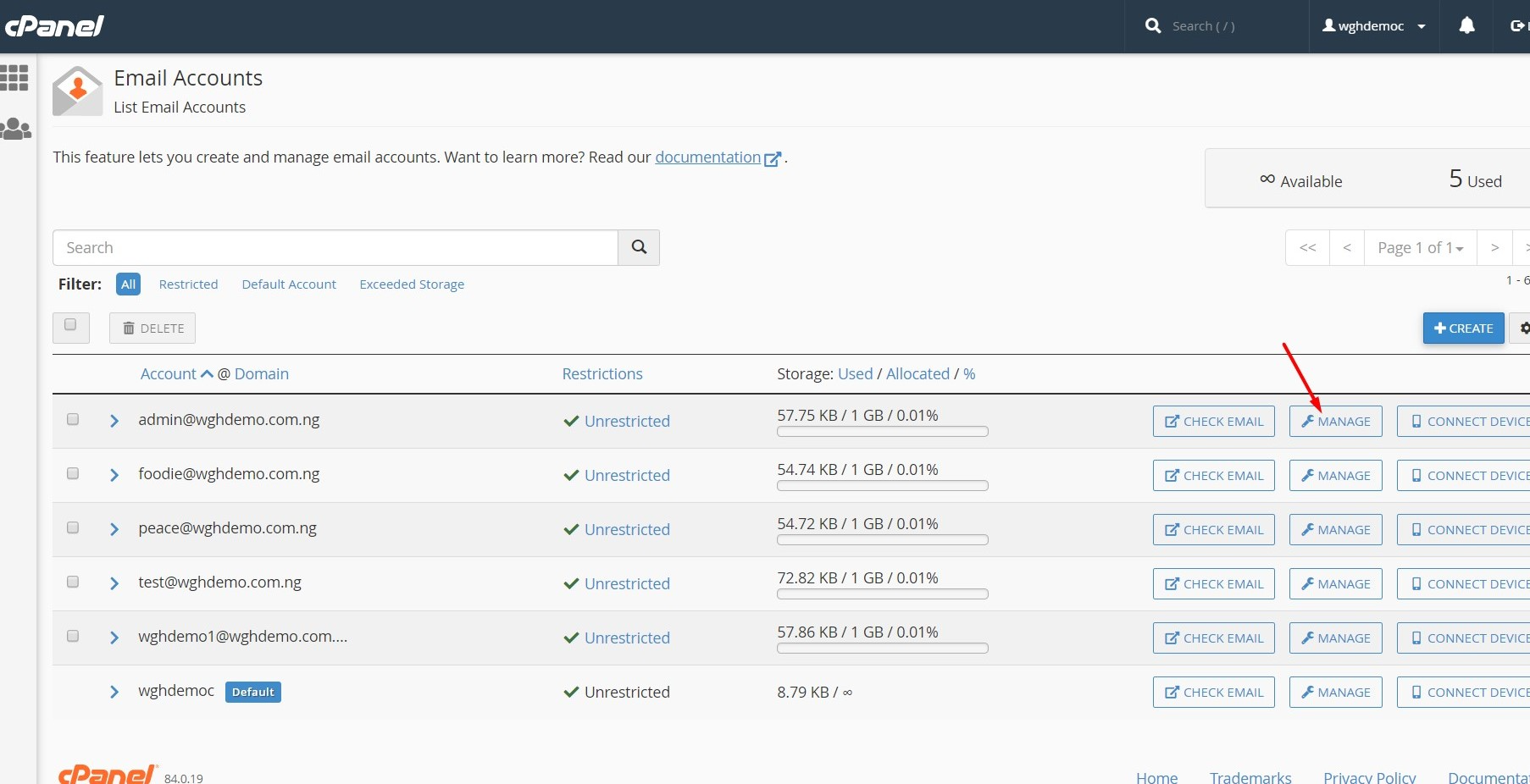
- Click on Manage, on the right-hand side of the email account you wish to work on.
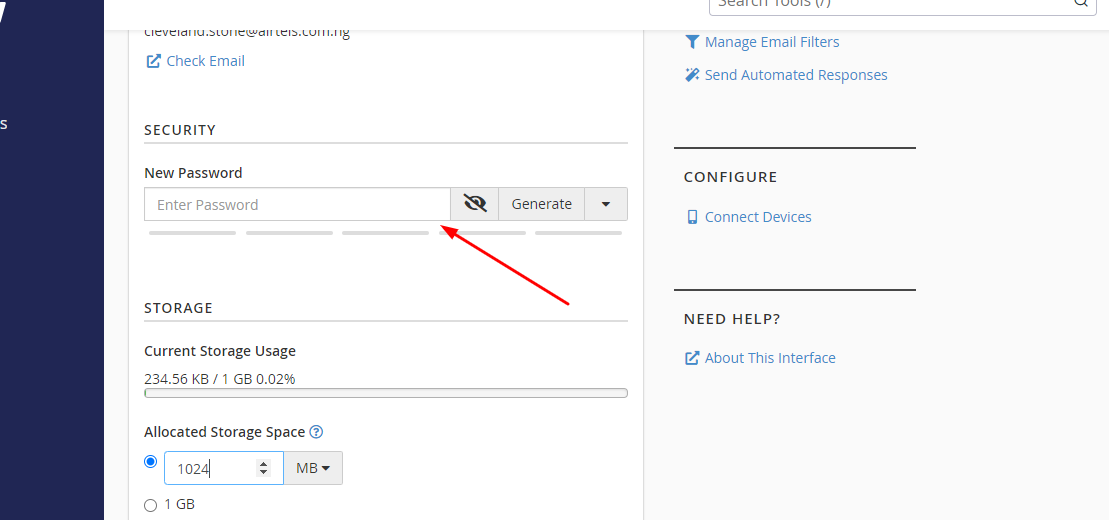
- This will open the Change Mail Account Settings menu.
- Type your new password into the Password text box.
- Scroll down and click on Update Email Settings.
Note : The Strength Meter: will indicate the difficulty of the password. We highly recommend you use a strong password. You can click on GENERATE to get a strong password.
- Your screen should refresh and you should receive a confirmation page. Congratulations! You've successfully changed your email account's password.